With VoiceTube Campus, you can add videos to share with students as “Course Videos.” Here’s how to add them.
How to Add Course Videos
Open the class page where you want to add a Course Video
-
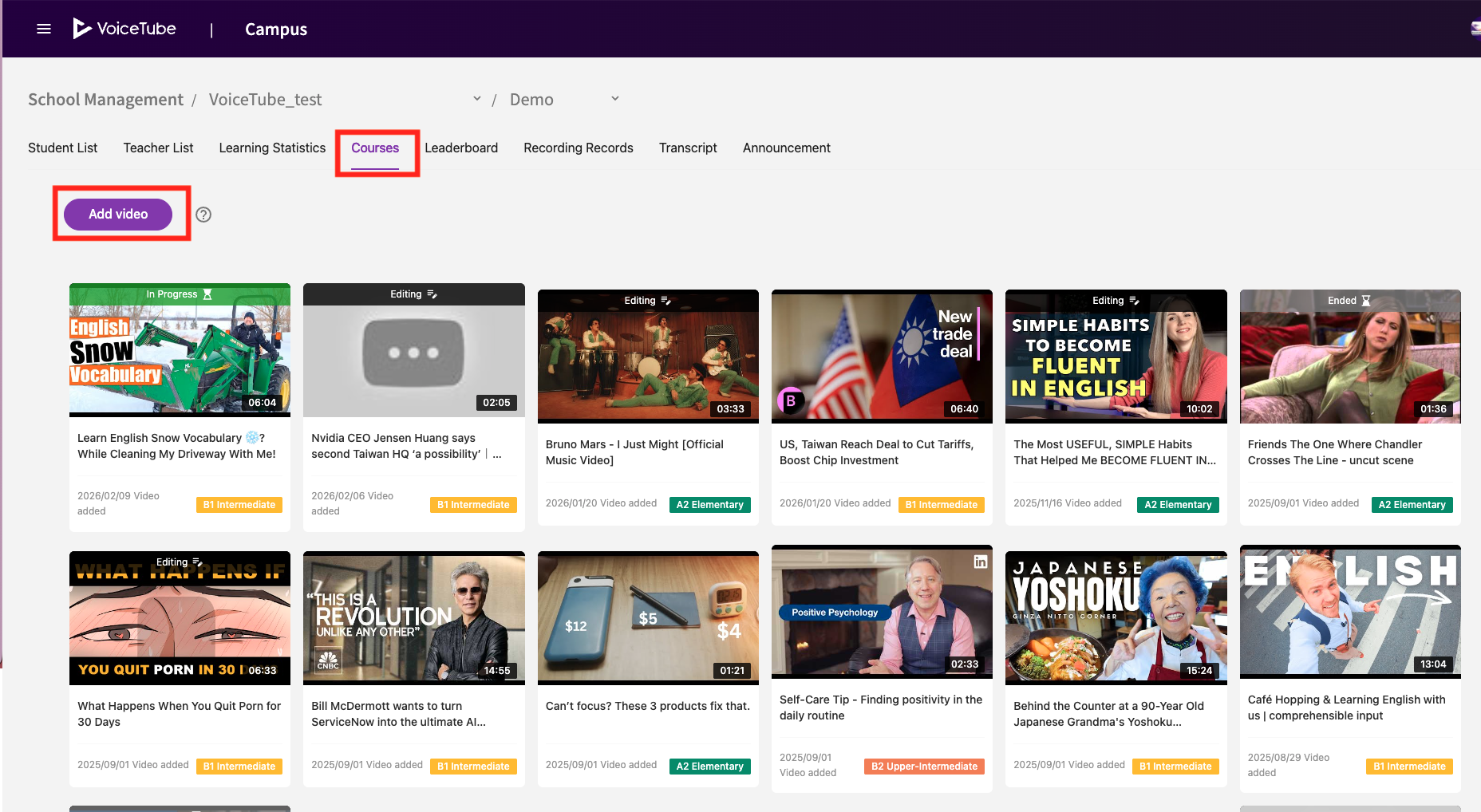
Open the page for the class you want to add the video to.
-
Go to the Courses tab.
-
Click Add Video.
Find a Course Video on VoiceTube
-
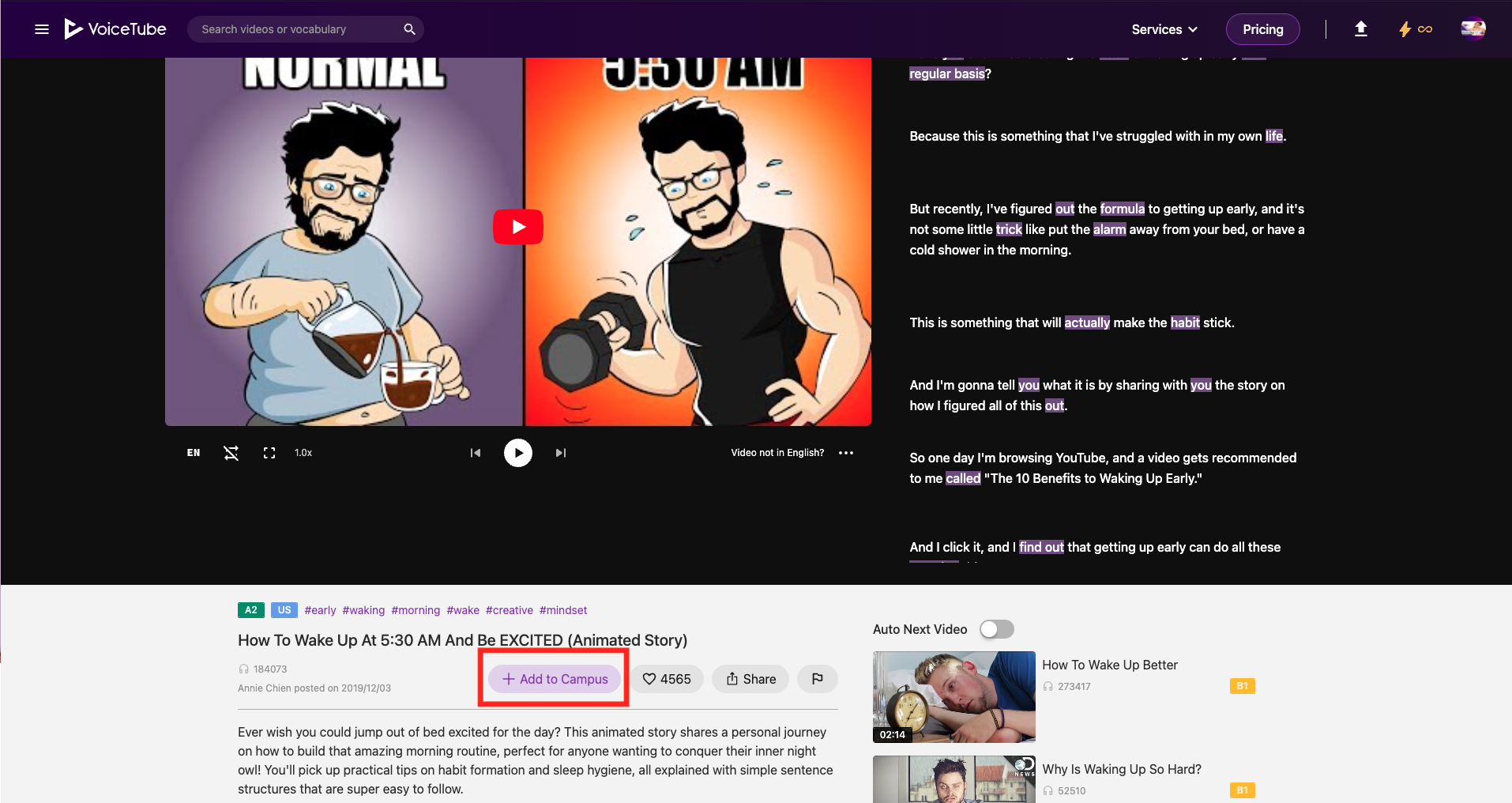
On the VoiceTube website, find the video you want to use as a Course Video.
-
Click Add to Campus below the video title.
Add the Video to a Class
-
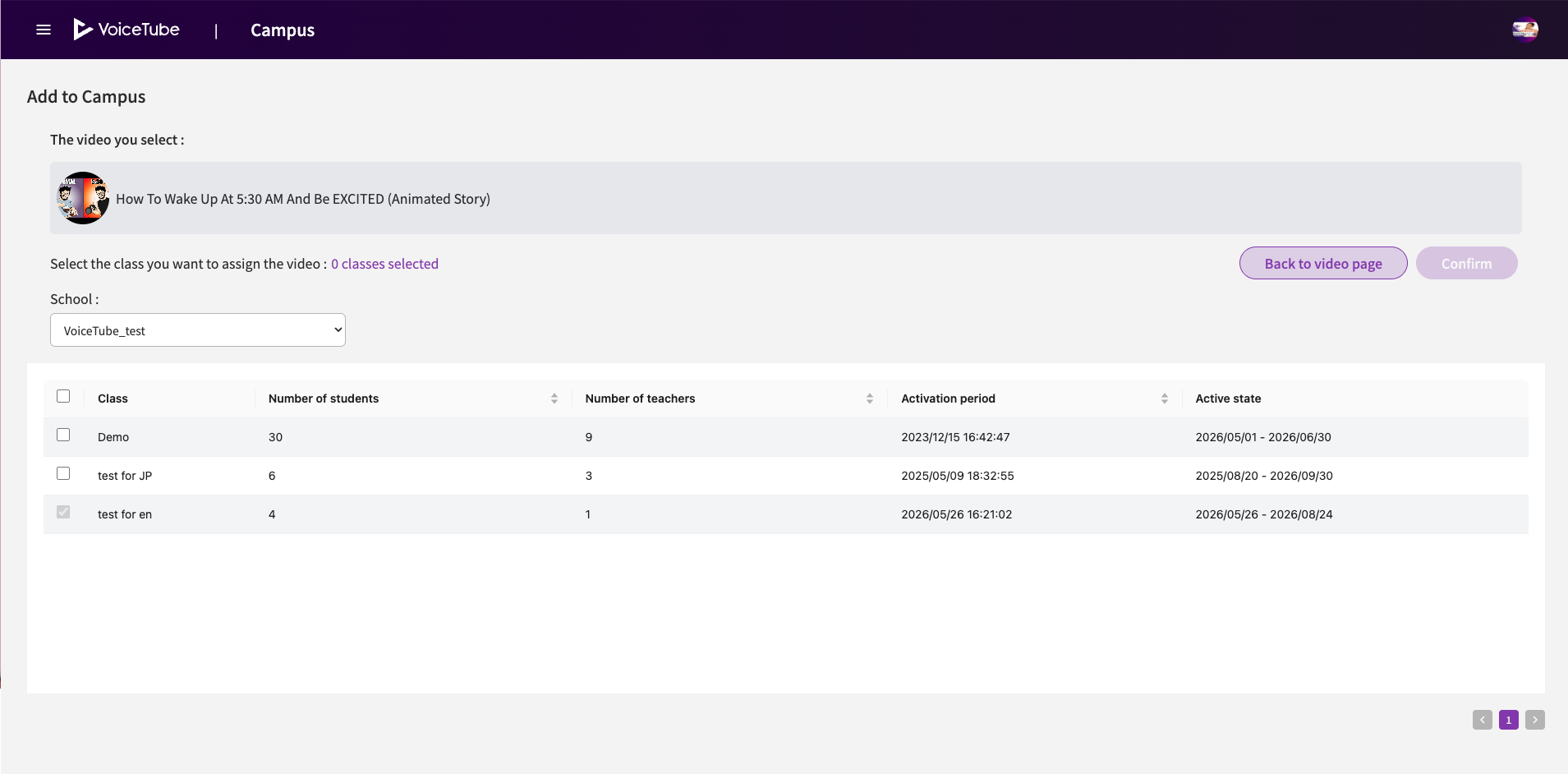
Check the class(es) you want to add the video to.
-
Click Confirm to complete the process.
Where Course Videos Are Displayed
Course Videos are displayed and shared with students in the following locations.
💻VoiceTube Web
VoiceTube Campus student homepage

📱VoiceTube App
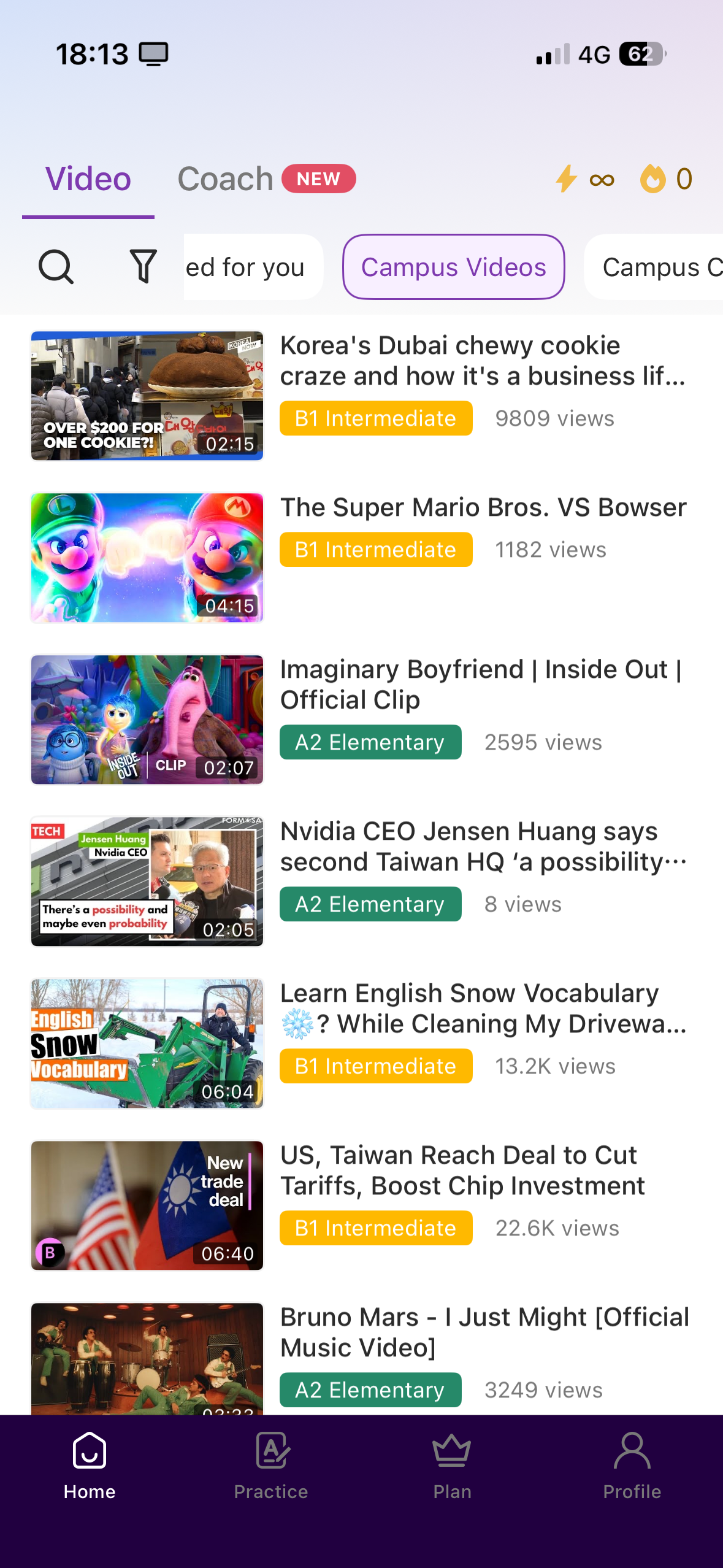
Campus Videos tab in the app’s Videos section
FAQ
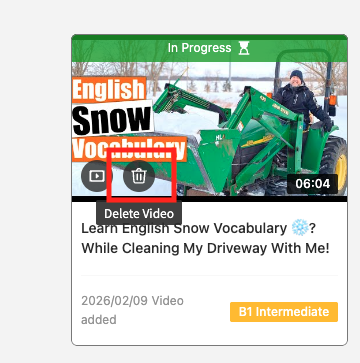
Q. Can I delete a video after adding it?
Yes. Click the trash can icon on the Course Video to remove it.
FAQ
Q. What are the benefits of adding videos as Course Videos? How are they different from regular videos?
Videos added as Course Videos are automatically added to students’ playlists on both the VoiceTube app and web. This makes them easier to access and distinguishes them from regular videos.
In addition, teachers can assign lesson tests to Course Videos and view more detailed learning records within Campus under the “Course Videos” section.