To maintain a good experience, we recommend using the APP for online courses
iOS Download link
Android Download link
QR code download
Open the web page on an iOS phone to take the level test
- Open Settings
Settings > Safari > Advanced > Experimental Features > turn on mediaRecorder.
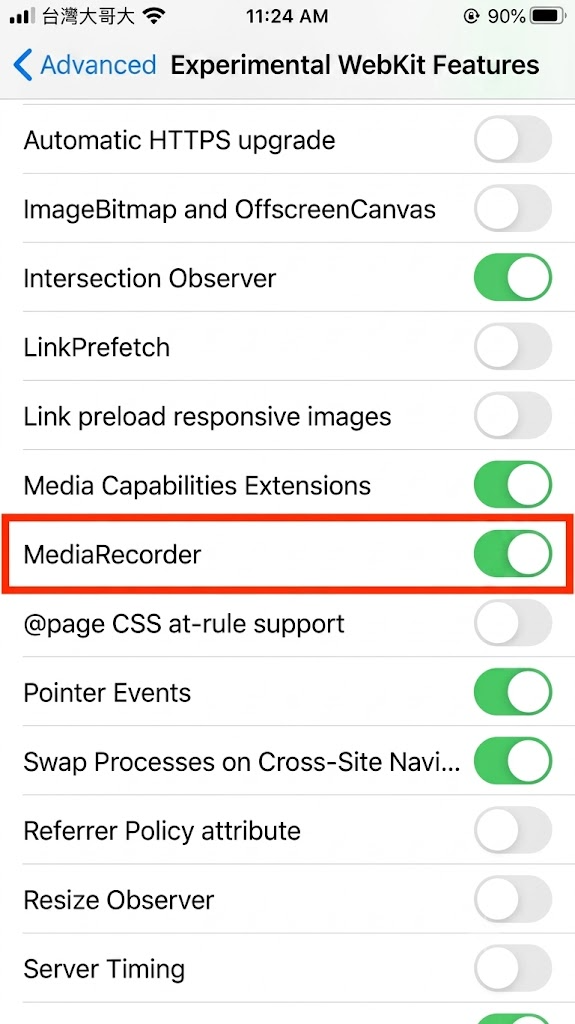
-
Open Safari (iOS phones do not support recording in the Chrome browser)
-
Allow microphone access
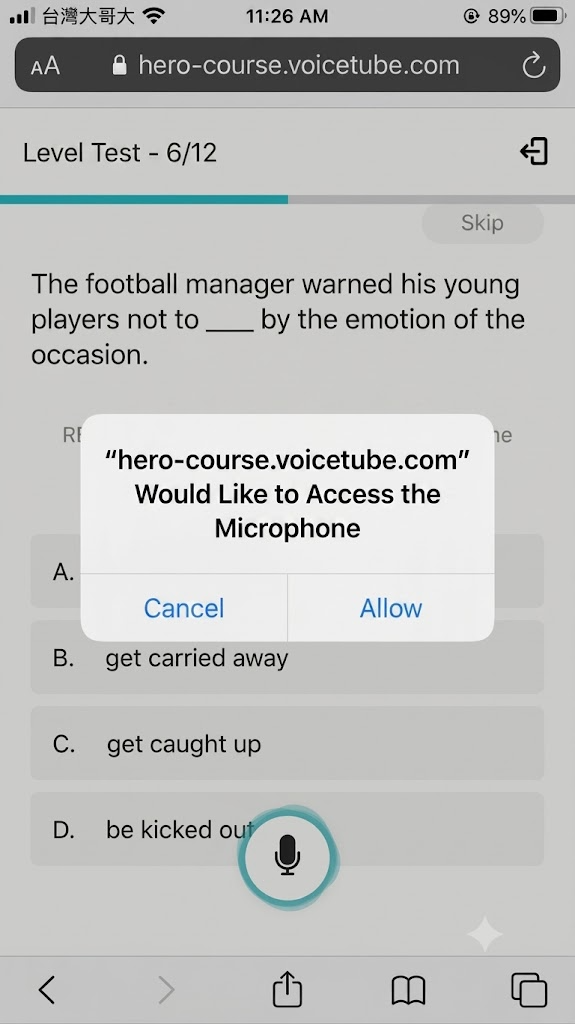
If you accidentally block the microphone, you can check the settings here:
Settings > Safari > Microphone
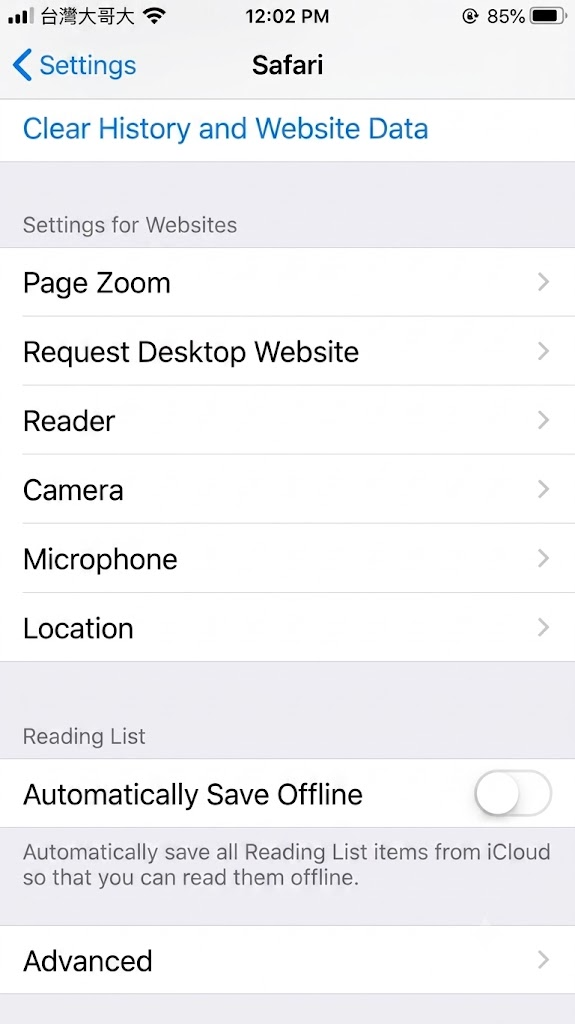
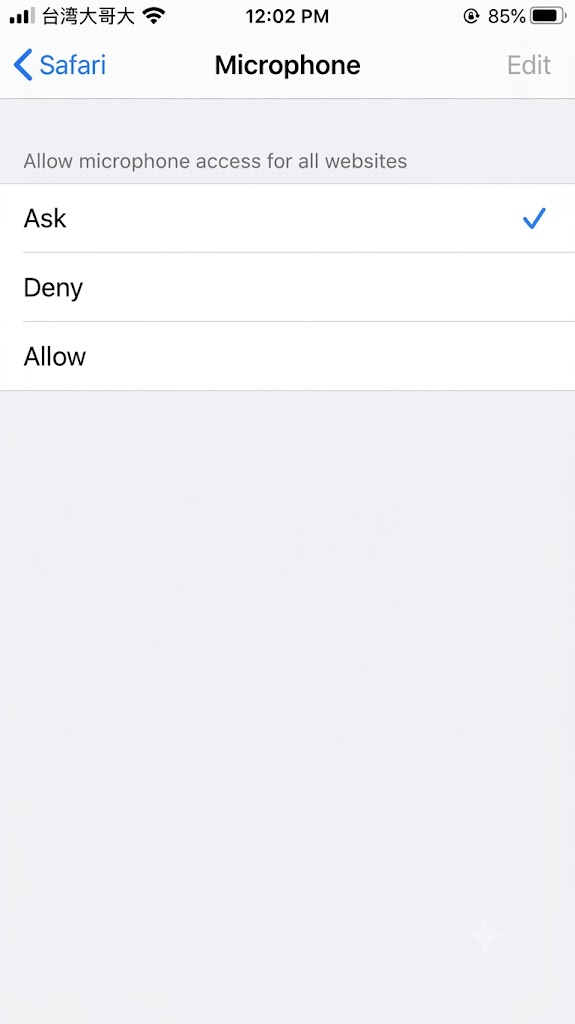
- If set to "Ask", re-entering the web page lets you choose Allow again
- If set to "Allow", re-entering the web page lets you record
Users who open the web page on an Android phone to take the level test and online courses
-
Open Chrome
-
Allow microphone access
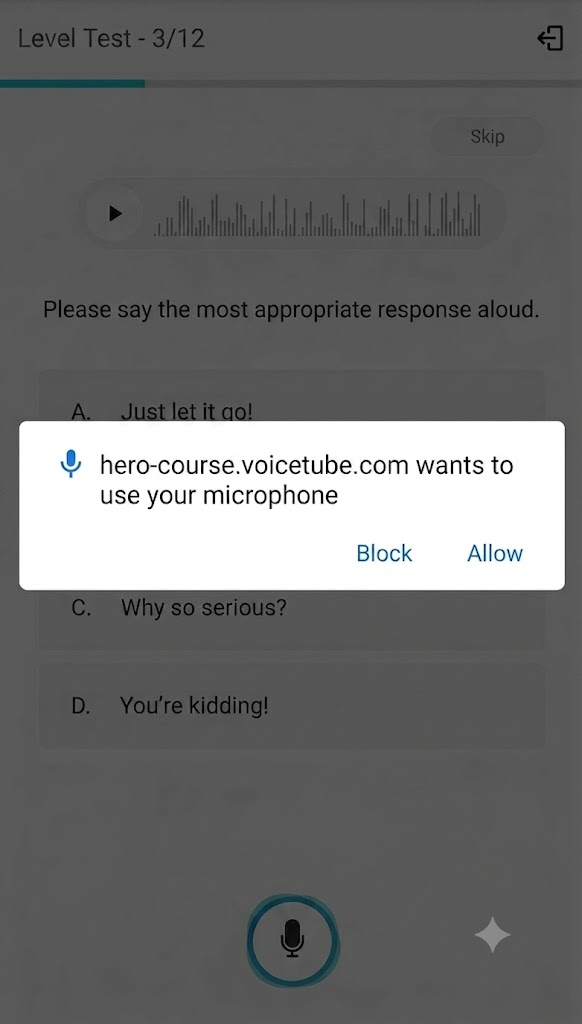
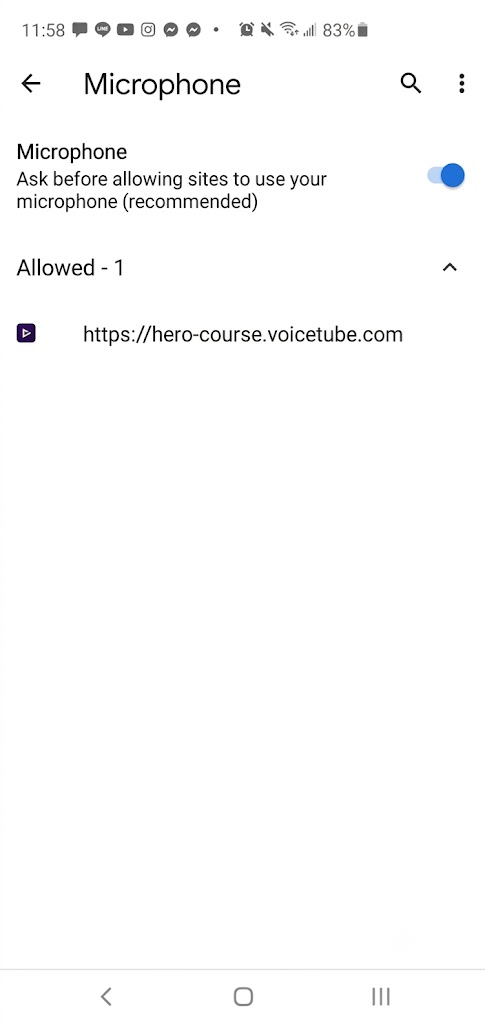
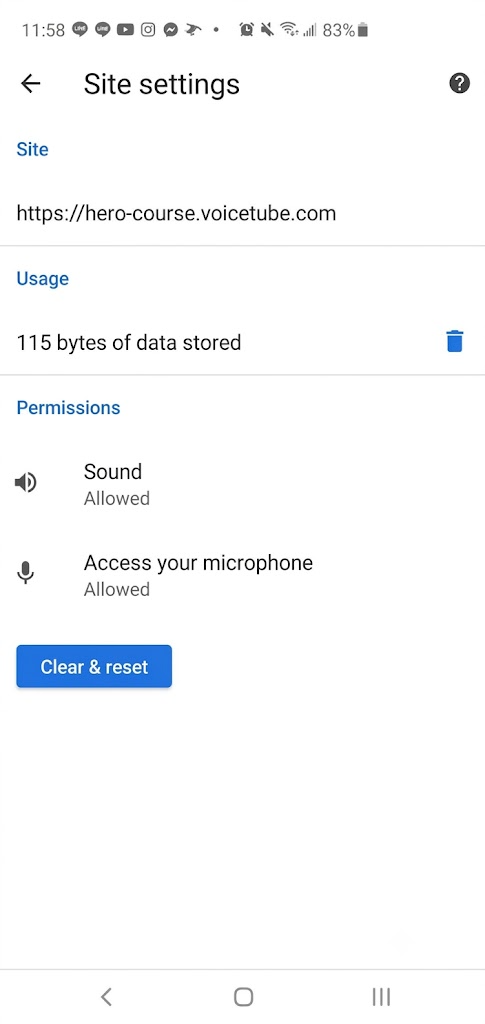
If you accidentally block the microphone, you can check the settings here:
Settings in the top-right corner of the Chrome browser > Settings > Advanced Site settings > Microphone > tap the voicetube URL > turn on the microphone permission
📝 Note: This article was machine-translated. If anything is unclear, please contact our support team.