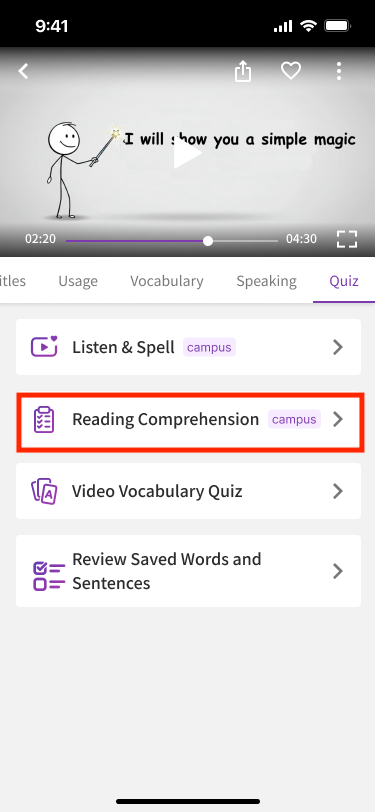
Teachers can create multiple-choice lesson tests for Course Videos in Campus and share them with their students.
How to Add a Lesson Test
Step 1: Add a VoiceTube Video as a Course Video
-
Add a VoiceTube video as a Course Video.
- For instructions on how to add a Course Video, please refer to this page 👉 [Course Videos].
Step 2: Open the Video
-
Go to Courses.
-
Click the video you would like to add a lesson test to.
Step 3: Creating Test Questions
There are two ways to create test questions:
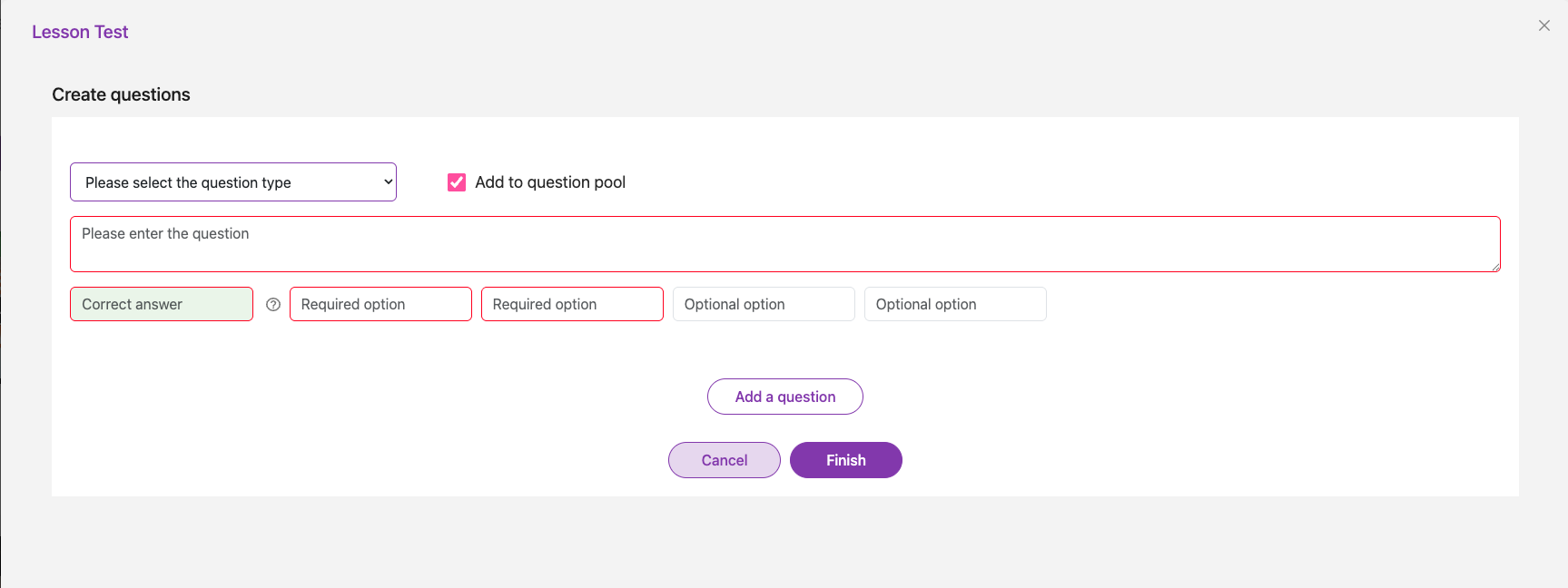
Option 1: Create a Question
Create a question manually from scratch.
-
Select a Question Type.
-
Enter the question, answer choices, and the correct answer.
-
Enable Add to Question Pool to save the question for future lesson tests.
Option 2: AI Generate
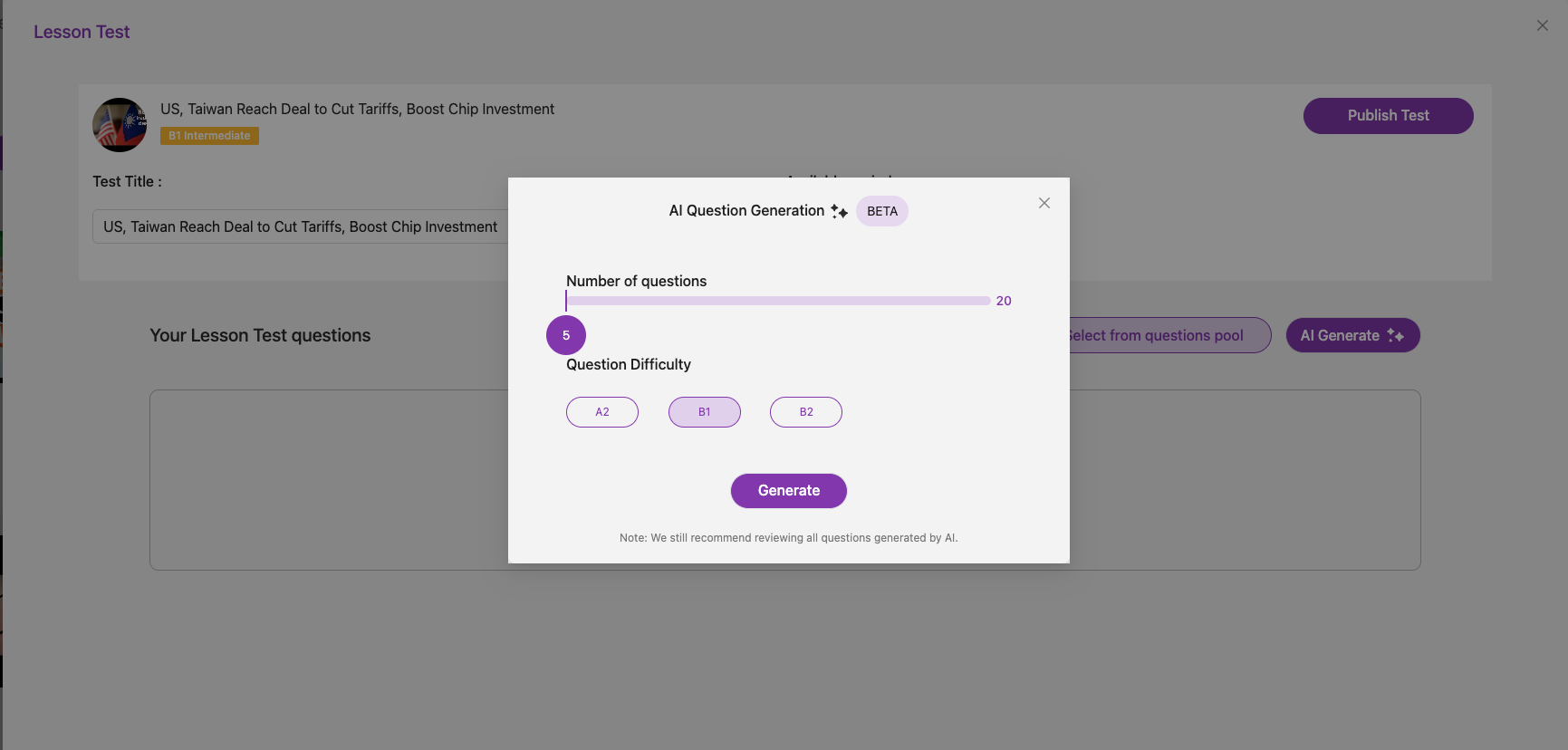
Let AI automatically generate questions based on the video content.
-
Select the number of questions and the difficulty level.
-
The AI will generate the questions automatically.
-
You can edit the generated questions if needed.
Note:
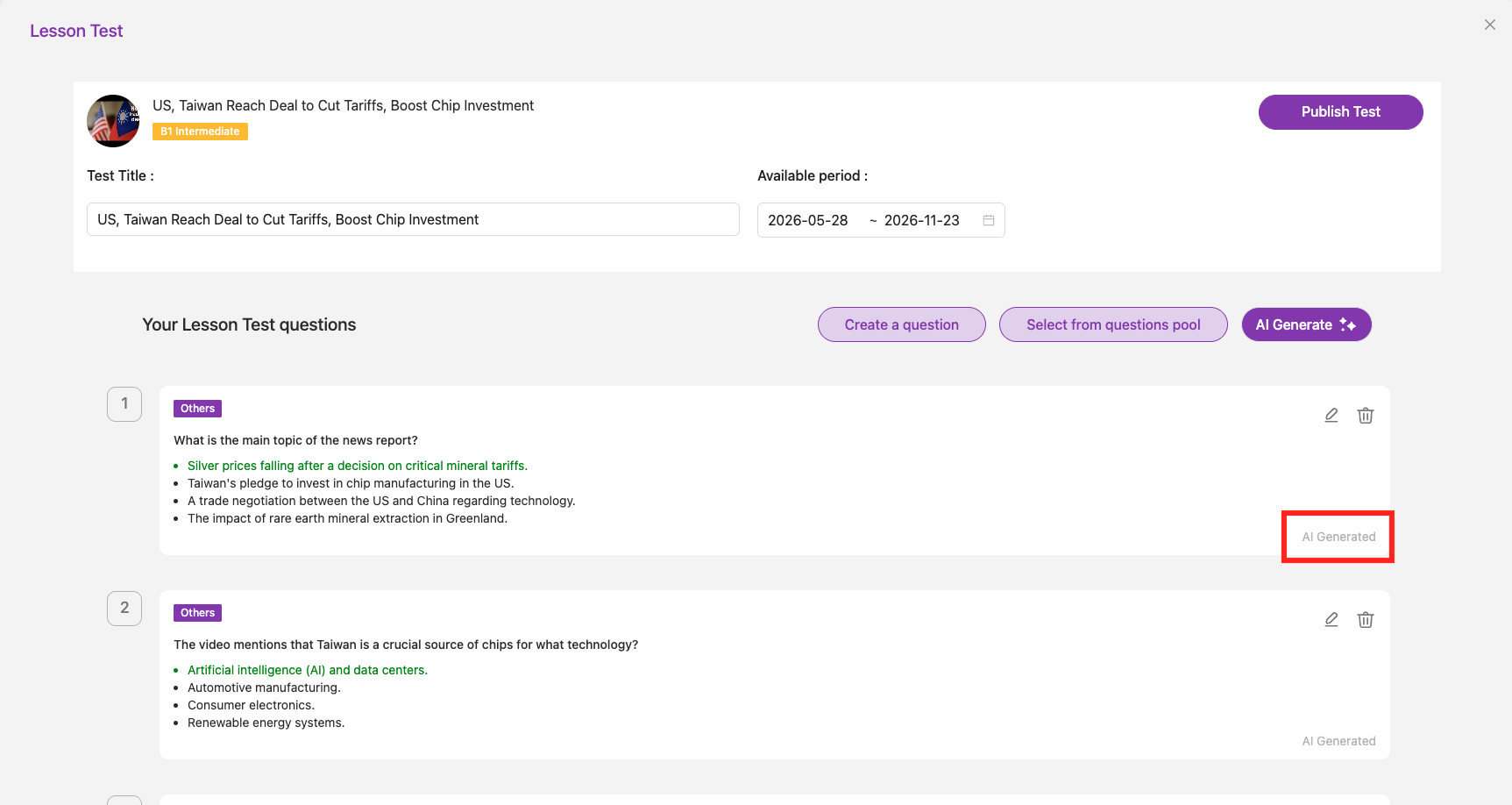
Questions generated by AI are labeled AI Generated.
If you edit an AI-generated question, the AI Generated label will be removed.
Step4: Publishing a Test
Once you have finished creating the test questions:
-
Set the Available Period.
-
Click Publish Test to make the test available to students.
Students can take the test only once during the specified period.
Viewing Test Results
Test results can be viewed in Transcript.
Student Guide: Where Can I Take the Test?
💻VoiceTube Web
-
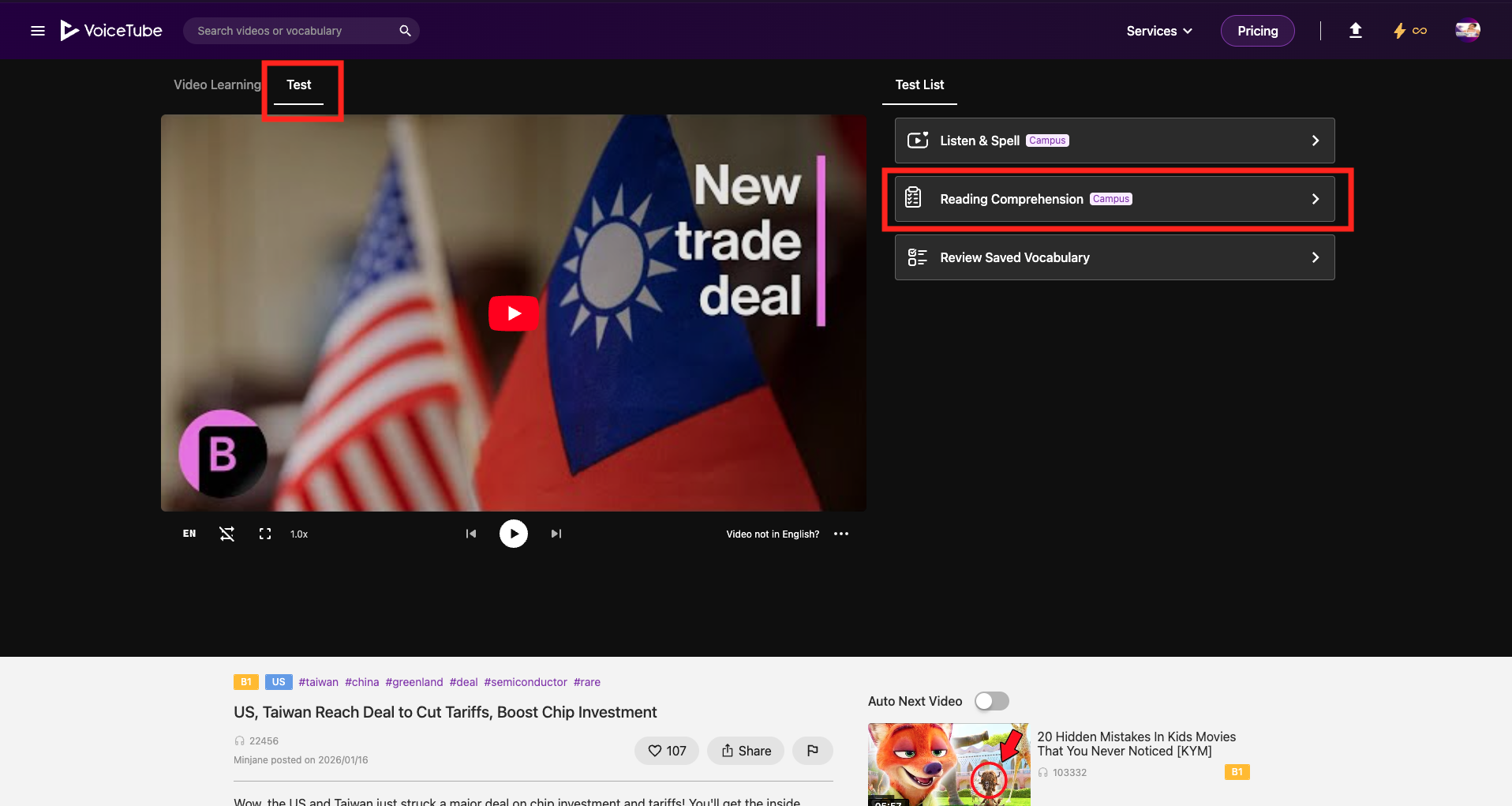
Open the page of the assigned video.
-
Click Test → Reading Comprehension.
📱VoiceTube App
-
Open the page of the assigned video.
-
Tap Reading Comprehension to start the test.