When you successfully subscribe to the VoiceTube Pro Family plan, as the administrator, you can easily invite members to join through the dedicated management interface.
1. Management Interface Overview
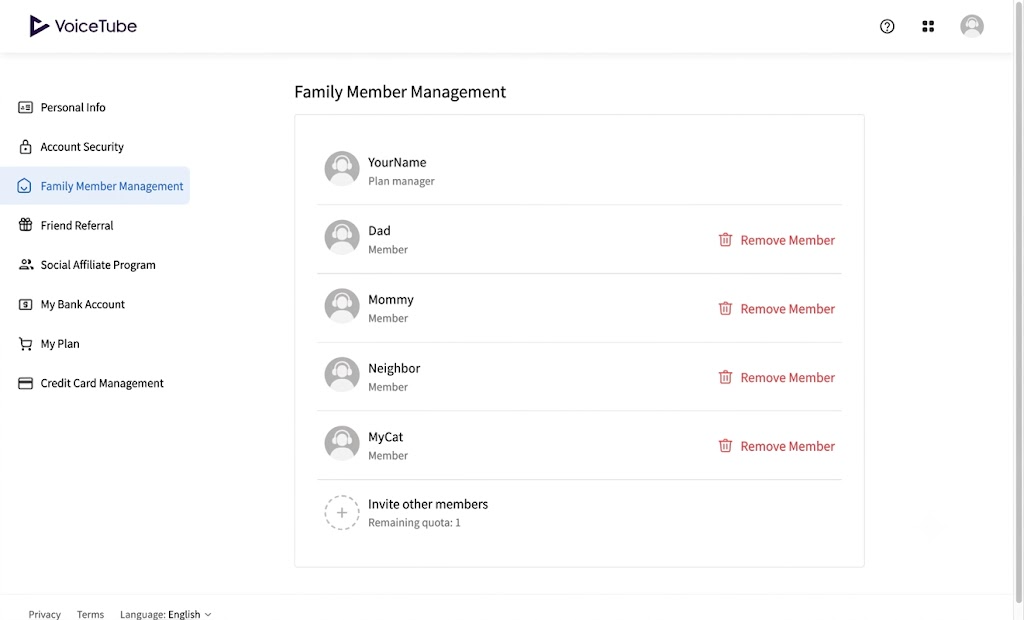
Go to the "Family Member Management" tab in "Personal Account", where you can see the current plan status:
-
Administrator label: Your account is displayed at the top of the interface and marked as Plan manager.
-
Member list: Clearly displays the list of members who have currently joined. If you need to remove a member, you can click the "Remove member" button next to the member.
-
Remaining spots: The "Remaining spots" will be shown in the invitation section, making it easy for you to confirm how many more members you can invite to join (the family plan supports a total of up to 6 people, including the administrator).
2. Adding Family Members
You can invite friends and family to join the learning journey through the following steps:
-
Get the invitation link: On the family member management page, click "Invite other members".

-
Copy and share: The system will pop up an invitation window, where you can directly copy the link and send it to your friend.

-
Member accepts the invitation: After your friend clicks the link, the system will ask whether to "join the family".
After confirming to join, your friend will successfully share Pro privileges with you, and the success screen "Welcome to the learning journey" will be displayed.

3. Removing Family Members
If you need to free up a spot to invite a new member, the administrator can remove existing family members at any time:
-
Operation steps: Operation steps:
On the "Family Member Management" page, find the account name of the member you want to remove.
Click the red "Remove member" button on the right side of that member.

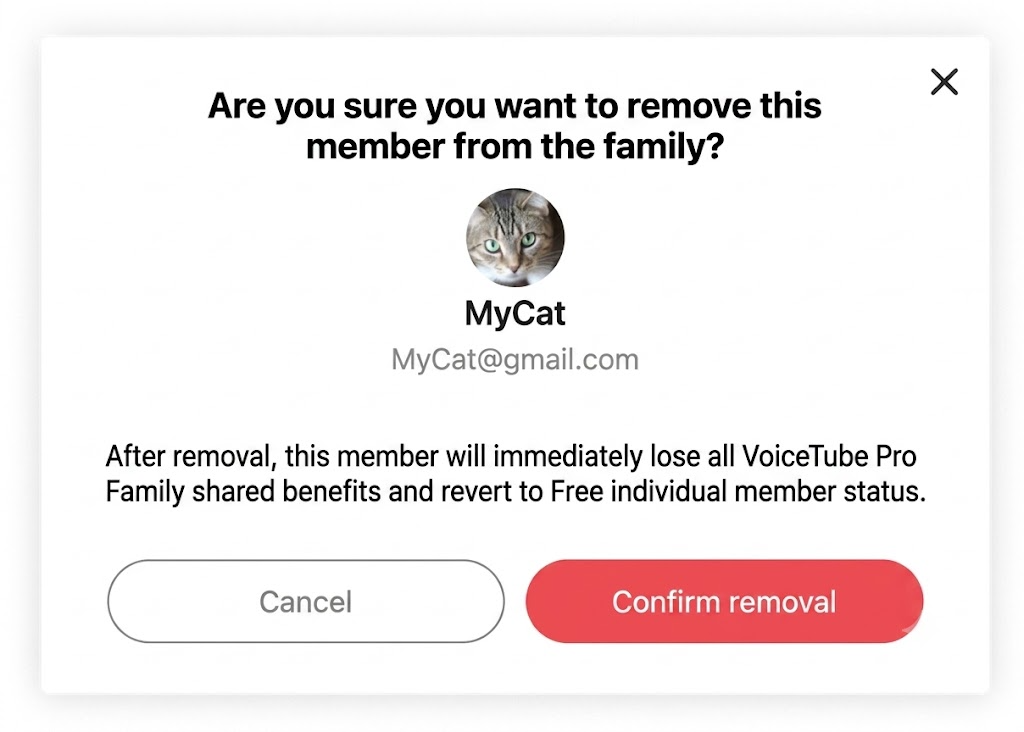
The system will pop up a confirmation window asking "Are you sure you want to remove this member from the family?".After clicking "Confirm removal", the member is immediately removed from the plan.
-
Change of privileges: The removed member will immediately lose all shared privileges of VoiceTube Pro Family.
That account will automatically revert to free user status. -
Spot freed up: After successful removal, the "Remaining spots" at the bottom of the management interface will be updated in real time, and you can click "Invite other members" again to add a new member.
4. Notes on Canceling the Family Plan Subscription
As the initiator (administrator) of the family plan, if you decide not to renew the VoiceTube Pro Family plan, please note the following rules:
-
Cancellation process: Please go to "Account Settings" > "Plan Management" and select "Cancel renewal".
After cancellation, you and all family members can continue to use Pro privileges until the end of the current subscription cycle.
-
Change of member privileges: Once the subscription cycle ends without renewal, the entire family group will automatically disband.
The accounts of all members (including the initiator) will simultaneously revert to free user status.
-
Data retention: Canceling the subscription will not delete members' learning records (such as word library, quiz history).
If a member purchases Pro on their own or joins another family in the future, the original learning data will be fully retained. -
Notes: If the initiator actively deletes their VoiceTube account during the subscription period, the family plan will become invalid immediately and is non-refundable, so please be sure to confirm before taking action.
📝 Note: This article was machine-translated. If anything is unclear, please contact our support team.